
Your AI can now build right inside Tulvo
Connect Claude, ChatGPT, Grok, Cursor or any AI agent with one link. Ask for a doc or a website in plain words, and it shows up in your Tulvo workspace, ready to use.


The short version
- Tulvo MCP connects any AI to your Tulvo workspace. Claude, ChatGPT, Grok, Cursor, Perplexity, OpenClaw and other agents all work.
- Your AI can create, edit, move and publish documents, and build, edit and publish websites.
- Setup takes three steps. Copy one link, add it to your AI app, sign in.
- Everything lands in your workspace as real Tulvo pages your team can use.
- In beta and free on every Tulvo plan, including Free.
Get a brief with AI
Short on time? Open this post in your favorite AI with a ready-made prompt and get a 150-word summary.
Read tulvo.io/blog/tulvo-mcp and give me a 150-word brief. What is Tulvo MCP, what can it do today, how do I connect it, and what is still in beta?


Opens ChatGPT, Claude, Gemini, Perplexity, Grok or Google AI Mode with the prompt ready.
Why we built Tulvo MCP#
Here is a small moment that happens millions of times a day.
You ask an AI assistant to write a project proposal. It does a great job. Then the real work starts. You copy the text. You open your workspace. You make a new page. You paste. The headings break. The table turns into a mess. Twenty minutes later, you finally have the thing you asked for.
The AI did the thinking. You did the moving.
AI assistants have become the place where work starts. But the finished work has to live somewhere else, in a real workspace where a team can find it, edit it and share it. So we asked a simple question. What if your AI could put the work where it belongs, without you carrying it?
- Meet people where they already are. If you already think in ChatGPT, Claude, Grok or Cursor, Tulvo should come to you there.
- Make real things, not text to copy. The AI writes straight into the Tulvo editor, using Tulvo’s own building blocks.
- Work with every AI, not just one. Claude, ChatGPT, Grok, Cursor, Perplexity, OpenClaw and autonomous agents all use the same link. Pick the AI you like and switch whenever you want.
- Make setup boring. One link and a quick sign-in. If a 12-year-old cannot follow it, we have more work to do.
What is MCP, in plain words?#
MCP stands for Model Context Protocol. It is a shared set of rules that lets an AI assistant connect to an app and take real actions inside it.
Think of your AI assistant as a very smart friend on a video call. Your friend can see your question, think and talk. But they cannot reach through the screen and tidy your desk. MCP gives your friend a safe pair of hands inside one app, with rules about what those hands may touch.
When an app offers an MCP server, your AI gets a list of tools. A tool is one clear action, like “create a document” or “publish a website”. Your AI picks the right tool, fills in the details and runs it. You see each step in the chat.
What is Tulvo MCP?#
Tulvo MCP is Tulvo’s own MCP server. It lets any AI assistant or agent, from Claude and ChatGPT to Grok, Cursor and OpenClaw, create and manage documents and websites directly in your Tulvo workspace, acting as you and with your permissions.
Tulvo MCP at a glance
Last verified| Fact | Detail |
|---|---|
| What it is | Tulvo’s MCP server. It lets AI assistants create and manage documents and websites in a Tulvo workspace. |
| Connector URL | https://mcp.tulvo.io/mcp |
| Works with | Claude, ChatGPT, Grok, Cursor, Perplexity, OpenClaw and any AI app or agent that supports MCP |
| What it can do | Create, edit, move, publish and restore documents. Build, edit and publish websites. |
| Tools | 27 in total. 11 read-only and 16 that create or change things. |
| Sign-in | One link and a quick sign-in in your browser |
| Safety | One workspace per connection. Acts as you, with your permissions. |
| Price | Included on every Tulvo plan, including Free |
| Status | Beta |
Inside Tulvo you will find it under Connected AI apps, marked Beta. Everyone uses the same connector link.
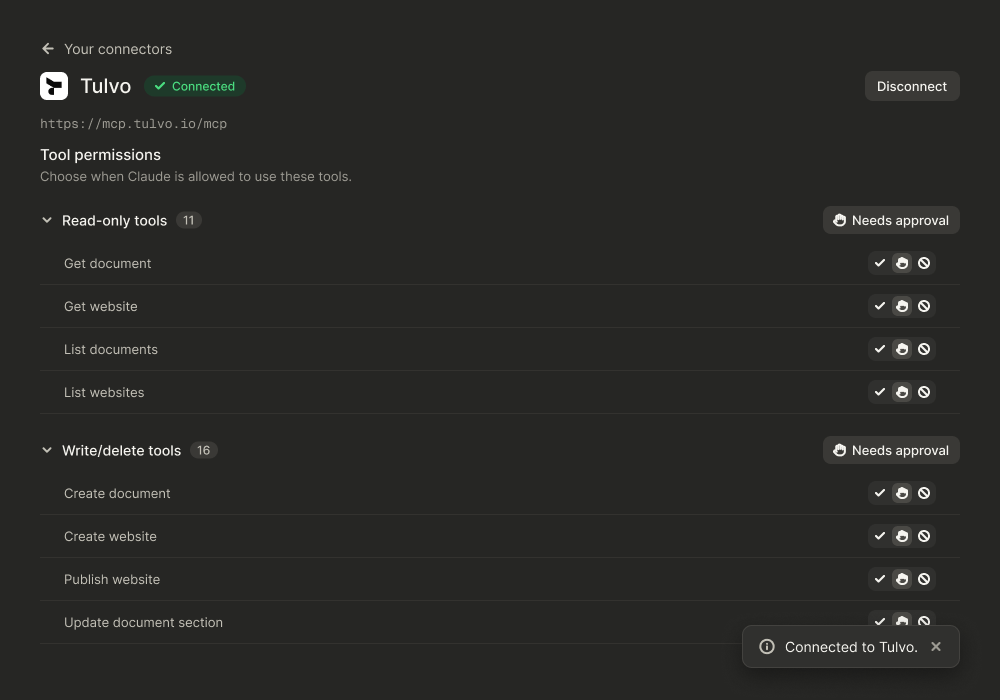
When we connected an AI app to a fresh workspace on October 30, 2026, it received 27 Tulvo tools. Eleven only read things. Sixteen create or change things.
| Area | What your AI can do | Example request |
|---|---|---|
| Documents | Create, read and list documents | “Write a project proposal for our new client.” |
| Documents | Rewrite a whole page or change one section | “Update only the pricing section.” |
| Documents | Move, trash and restore documents | “Restore the doc I deleted yesterday.” |
| Documents | Upload a file or image into a document | “Add our logo to the top of this page.” |
| Documents | Publish to a share link or make private again | “Publish this proposal and give me the link.” |
| Websites | Build a website and save it as a draft | “Build a website for my yoga studio.” |
| Websites | List sites, view and edit pages and files | “Change the homepage headline.” |
| Websites | Update site details such as the name | “Rename my site to Maple Crumb.” |
| Websites | Publish, update a live site or take it offline | “Publish my website.” |
| Workspace | List templates, see members, confirm the account | “Which workspace are you connected to?” |
Before writing, your AI reads Tulvo’s document guidelines and website guidelines. That is how the output uses real Tulvo editor blocks and looks right the moment it lands.
How Tulvo MCP works#
- You connect once. Paste one link into your AI app and sign in to Tulvo.
- You ask in plain words. “Create a landing page for my bakery.”
- Your AI plans and writes. It follows Tulvo’s built-in guidelines so blocks and layouts fit the editor.
- It builds the real thing. Real Tulvo documents and websites, with proper blocks and layouts.
- It lands as a draft. The page appears in your workspace, saved but not public.
- You review in Tulvo. Edit by hand, ask the AI for changes, or both.
- It goes live in one step. Ask your AI to publish and it hands you the link.
The AI works only inside the workspace you connected, with the same permissions you have. If you cannot open something, neither can it.
How to connect your AI to Tulvo, step by step#
We use Claude as the example here. The steps are the same in ChatGPT, Grok, Cursor and other AI apps. Only the menu names change.
STEP 1Copy your Tulvo connector link
In Tulvo, open the Connected AI apps card at the bottom of the sidebar and click Copy URL. This one link works for every AI app.
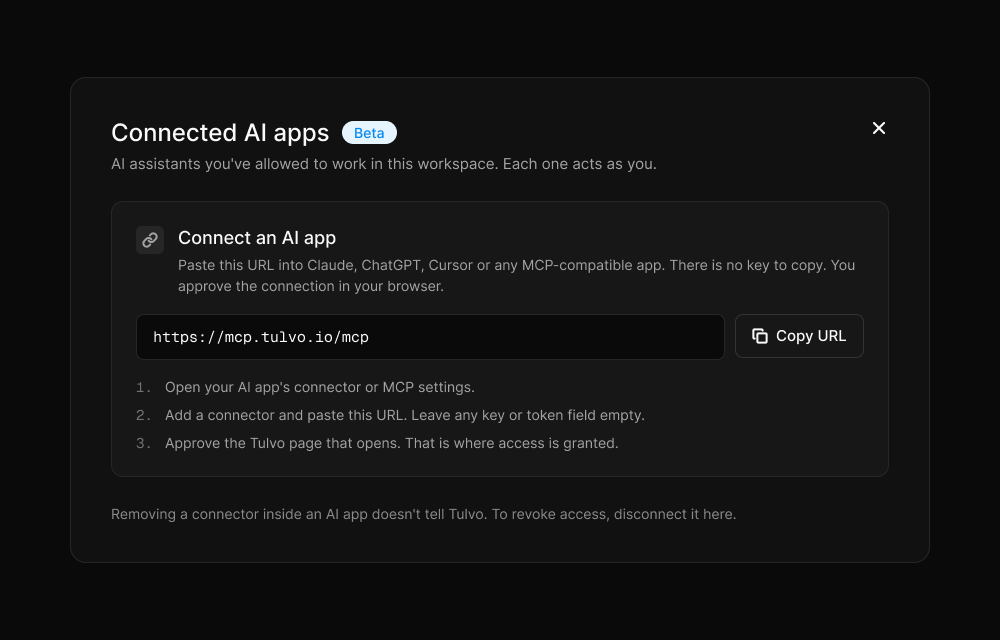
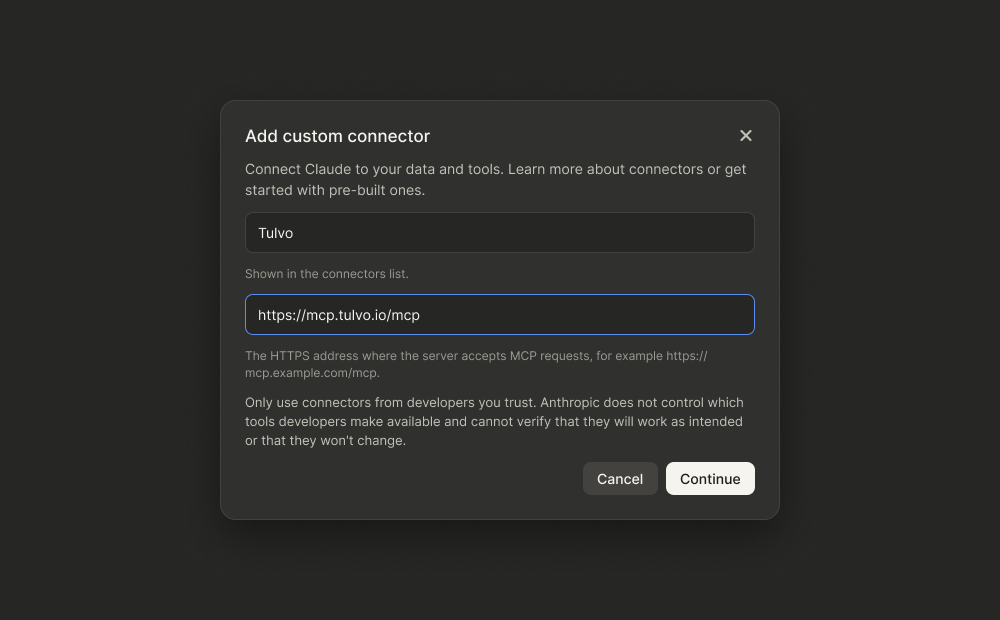
STEP 2Add Tulvo as a custom connector in Claude
In Claude, open Customize, then Connectors. Click Add and choose Add custom connector. Type Tulvo as the name, paste the link into MCP server URL and click Continue.
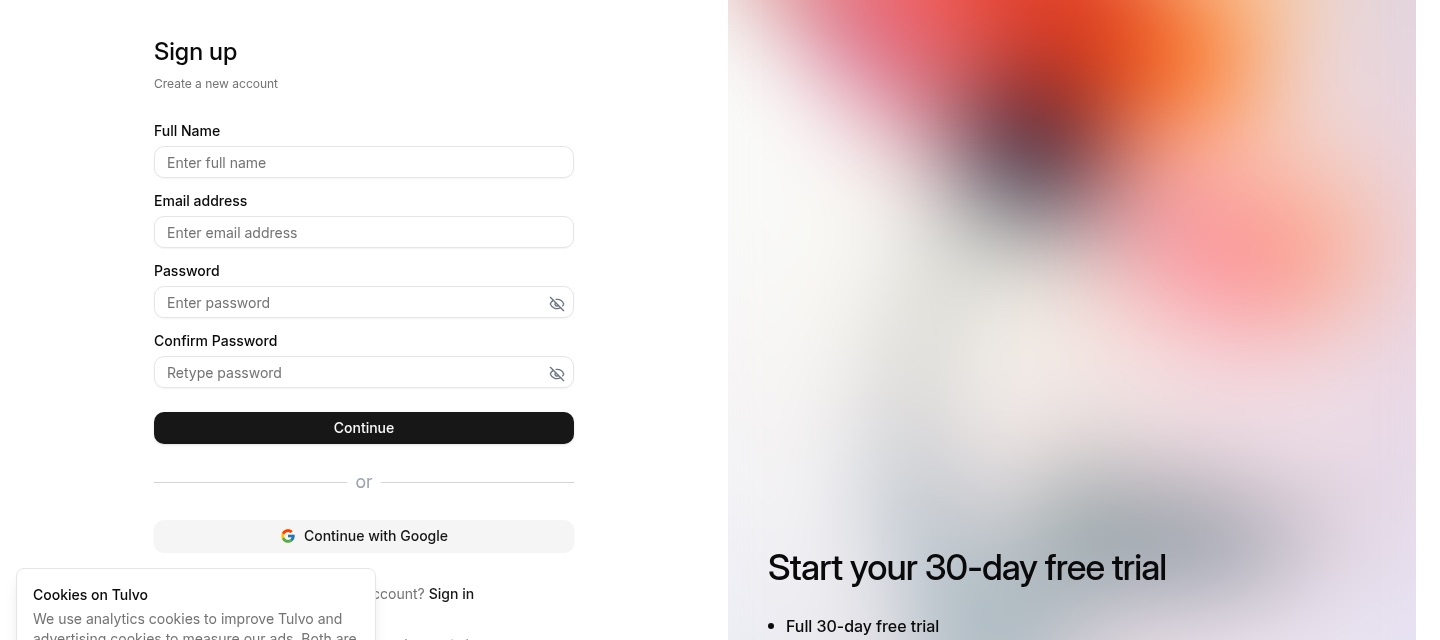
STEP 3Click Connect, then sign in or sign up
Back in your connector list, click Connect next to Tulvo. Claude opens Tulvo in your browser. New to Tulvo? Sign up and set up your workspace. Already have an account? Sign in.
Good to know for new accounts.
In our test, a brand new account finished workspace setup and landed on the Tulvo home screen instead of the Allow access page. Go back to your AI app and click Connect once more. You will go straight to the Allow access page.
STEP 4Allow your AI into your workspace
Tulvo shows a short page that says Claude wants to access your Tulvo workspace, with the workspace name and the account you are connecting as. Click Allow access.
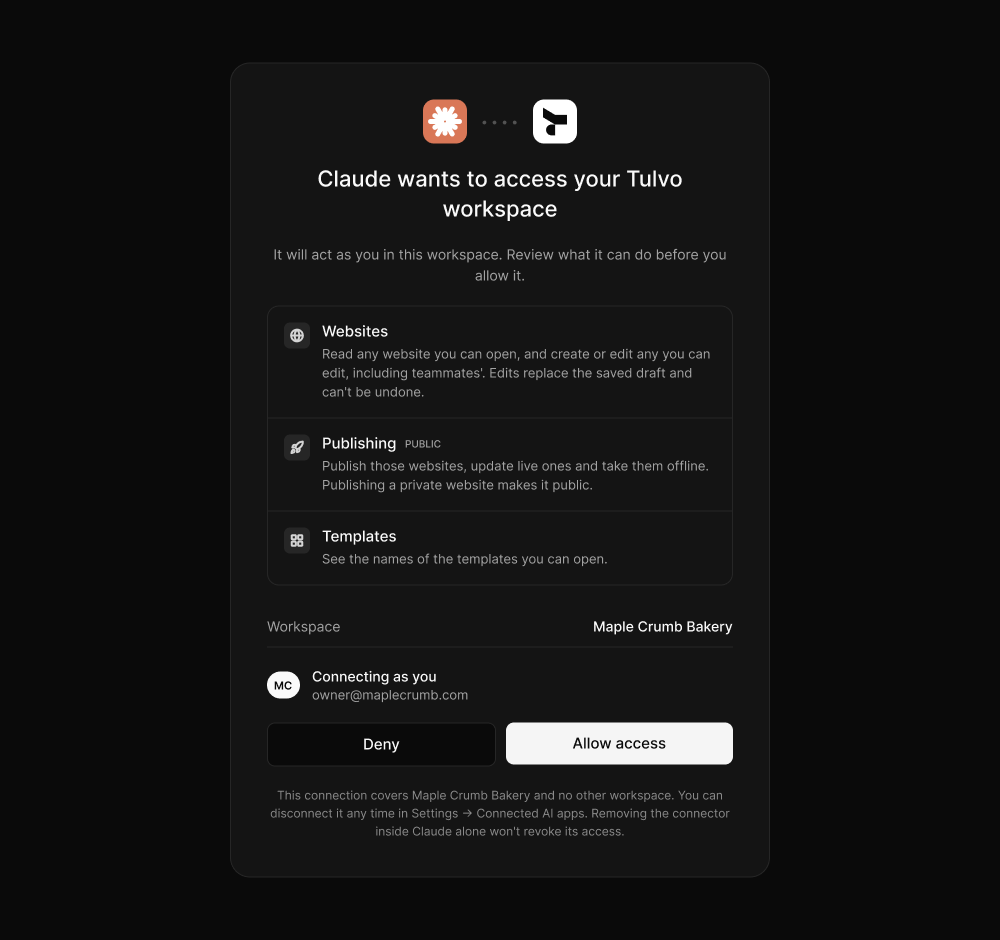
STEP 5See “Connected to Tulvo”
You land back in Claude with a small message that says Connected to Tulvo. Open the connector to see every Tulvo tool your AI can now use.
STEP 6Ask for something real
Start a new chat and ask. Be specific about what you want and who it is for.
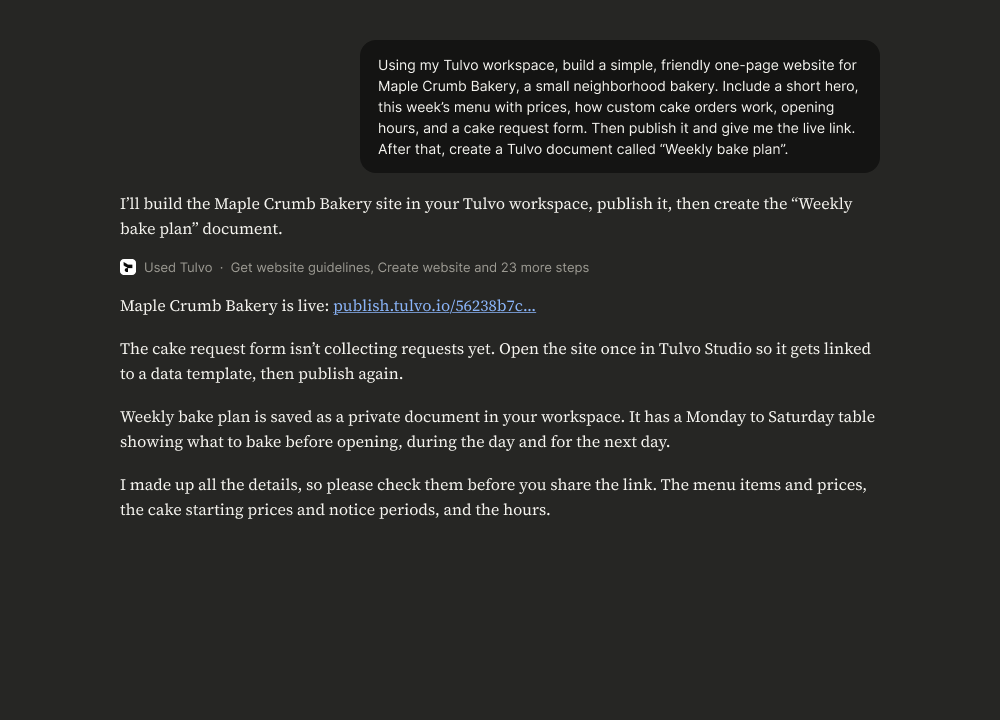
Using my Tulvo workspace, build a simple one-page website for Maple Crumb Bakery. Include this week’s menu with prices, how custom cake orders work, opening hours and a cake request form, then publish it.
Ready to try it on your own workspace?
Start free, then paste one link into your AI app. It works on every plan.
Works with every AI app and agent#
Tulvo MCP is not a Claude feature. It works with any AI app or agent that supports MCP, and they all use the same link. Only the place you paste it changes.
| AI app or agent | Where to paste the link | Good to know |
|---|---|---|
| Claude | Customize, Connectors, Add custom connector | Works on every Claude plan |
| ChatGPT | Plugins, then Add custom MCP server | Choose OAuth when asked |
| Grok | Its connectors or MCP settings | Same link, same sign-in |
| Cursor | ~/.cursor/mcp.json, then Customize, MCPs | Great for building sites from code |
| Perplexity | Its connectors settings | Same link, same sign-in |
| Claude Code | claude mcp add --transport http tulvo https://mcp.tulvo.io/mcp | Sign in with /mcp |
| OpenClaw and autonomous agents | Add the URL to the agent’s MCP server list | Runs as the account that signed in |
| Any other MCP app | Its connector or MCP settings | If it speaks MCP, it works |
~/.cursor/mcp.json
{
  "mcpServers": {
    "tulvo": {
      "url": "https://mcp.tulvo.io/mcp"
    }
  }
}
What happened when we tried it#
We wanted to see the real thing, not a demo script. So we made a fresh Tulvo account with a throwaway email, called the workspace Maple Crumb Bakery, connected Claude and asked for a bakery website plus a weekly bake plan.
- Connecting took about two minutes. Most of that was creating the new account.
- Claude read Tulvo’s website guidelines first, then planned the menu, the cake steps and the form.
- It finished the whole request in one go. About 25 steps later, it handed back a live link, a private “Weekly bake plan” document and a short list of things to check.
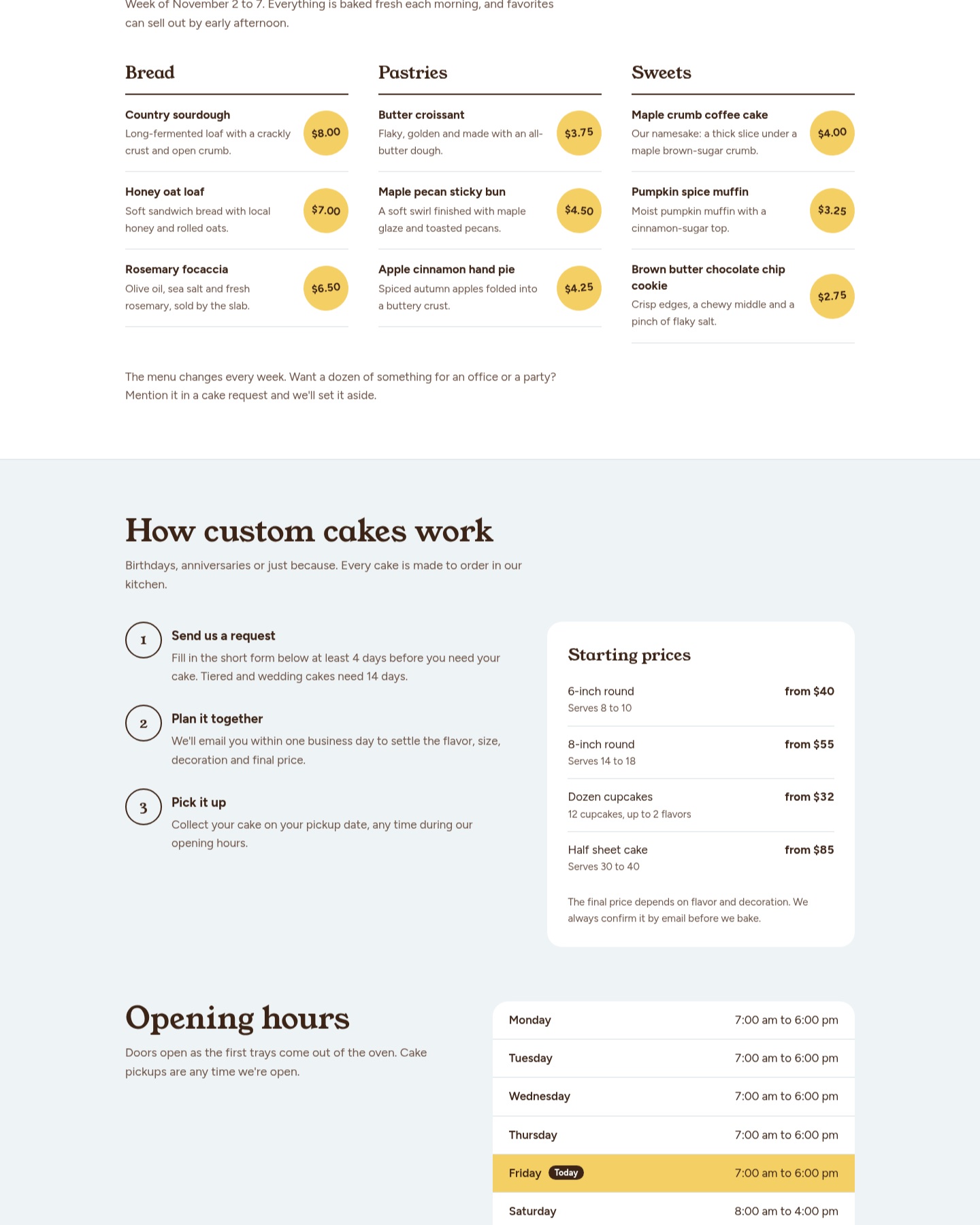
The site has a warm hero, this week’s menu with prices, a three-step guide to custom cakes, an opening hours table that highlights today and a cake request form. The form even blocks Sundays and pickup dates that are too soon.
- It was honest about made-up details. Claude said it invented the menu, prices and hours, and asked us to check them before sharing.
- It kept the two pieces in sync. The site and the bake plan used the same week and the same hours.
- It flagged the form right away. It told us to open the page once in Tulvo Studio so the form starts collecting.
The one honest gap in the beta.
Forms built through MCP are not connected on their own yet. Open each page with a form once in Tulvo Studio, publish again, and submissions start collecting. Your AI tells you which pages need this.
What you can use Tulvo MCP for#
Here are a few ways people can use it today. Each one is something you could ask for in a single message.
Founders and owners
Write a one-page proposal for a website redesign for Bright Smile Dental. Ask me about the budget first.
Build a simple site for my cleaning business with services, prices and a quote form.
Marketers
Draft a landing page for our spring webinar, show it to me, then save it to Tulvo.
Turn this campaign brief into a Tulvo doc with goals, audience, channels and a timeline table.
Agencies and freelancers
Build a client welcome site with our process, the team and a kickoff form.
Update only the timeline section of the Acme proposal. Keep everything else.
Clubs, classes and side projects
Make a website for our school robotics club with meeting times and a sign-up form.
Write a simple how-to page for our volunteers and publish it to a share link.
Why it is worth trying#
It saves time
A full first draft of a page or site in minutes instead of an afternoon. You spend your time judging, not moving text.
Nothing to learn first
You do not need to know the Tulvo editor to get value. Describe the result and let the AI do the clicking.
You stay where you work
If your day starts in ChatGPT, Claude, Grok or Cursor, it can keep going there. Tulvo becomes the place your AI saves its work.
Real output, not text
Actual Tulvo docs and sites with proper blocks, in your workspace. Nothing to paste or reformat.
Safety and control#
Giving an AI hands inside your workspace should come with clear rules. Here is how Tulvo MCP handles them.
| Topic | How it works | Who controls it |
|---|---|---|
| Connecting | You connect on a Tulvo page that lists what is allowed | You |
| Scope | Each connection covers one workspace and no other | Tulvo |
| Identity | The AI acts as you, with your permissions | Your role in Tulvo |
| Edits | Section edits change only the part you asked for | The AI and you |
| Deletes | Deleted documents go to trash and can be restored | You |
| Disconnecting | Disconnect any time under Connected AI apps in Tulvo | You |
| Admin control | Workspace admins decide who may connect AI apps | Admins |
What it cannot do yet#
We would rather you hear this from us.
- It is a beta. We are still tuning output quality and rare cases, like two people editing the same page at once. Results may vary, and features may change.
- Forms are not connected automatically. Open each page with a form once in Tulvo Studio before submissions are collected.
- Tasks and boards are not included yet. Today the AI works with documents and websites, plus templates, members and account checks.
- Your AI app may have its own limits. Some apps only allow custom connectors on certain plans.
What comes next. The Workspace Builder#
Today your AI can create single documents and websites. Next, we are working on the Workspace Builder. It will let you set up an entire workspace by chatting. Pages, tasks, boards and everything else a team needs, in one go.
Coming later. Not available yet.
Imagine typing “Set up a workspace for my 5-person marketing team with a content calendar board, a campaign tracker, a brand guidelines page and starter tasks for this month,” and getting a ready-to-use workspace back.
It is planned and not started, so we are not sharing a date.
Ten prompts to try first#
- “Which Tulvo workspace are you connected to?”
- “List my Tulvo documents and websites.”
- “Write a one-page project proposal for [client]. Ask me three questions first.”
- “Build a one-page website for [business] with services, prices and a contact form.”
- “Rewrite this document in a friendlier tone.”
- “Update only the FAQ section of [document].”
- “Change the homepage headline of [site].”
- “Publish [document] and give me the share link.”
- “Take [site] offline for now.”
- “Restore the document I moved to trash today.”
Frequently asked questions#
Does Tulvo have an MCP server?
Yes. Tulvo MCP is in beta at mcp.tulvo.io/mcp. In Tulvo you will find it under Connected AI apps. It lets AI assistants create and manage documents and websites in your workspace.
Is Tulvo MCP free?
Yes. It is included on every Tulvo plan, including Free. Your AI app sets its own plan rules for connectors.
Which AI assistants work with Tulvo MCP?
Any AI app or agent that supports MCP. That includes Claude, ChatGPT, Grok, Cursor, Perplexity, OpenClaw and autonomous agents. They all use the same link.
Do I need to know how to code?
No. You describe what you want in plain words. Setup is one link and a quick sign-in.
Where does the content go?
Into your own Tulvo workspace, as normal Tulvo documents and websites you can edit by hand.
Is Tulvo MCP secure?
Each connection covers one workspace, acts as the person who approved it and can be removed any time in Tulvo. Admins control who may connect AI apps.
Can Tulvo MCP build tasks and boards?
Not yet. That is part of the Workspace Builder, next on our roadmap.
How do I disconnect an AI app?
In Tulvo, open Connected AI apps and disconnect it there. Removing the connector inside your AI app alone does not revoke access.
Tried Tulvo MCP? Tell us what happened.
What you asked for, what worked and what did not. It goes straight to the team building it.
Words worth knowing#
- AI assistant
- A chat AI, such as ChatGPT, Claude or Grok, that you talk to.
- MCP
- Model Context Protocol. Shared rules that let AI assistants use an app’s features.
- MCP server
- The part of an app that offers tools to AI assistants. Tulvo’s is at mcp.tulvo.io.
- Tool
- One clear action an AI can take, like “publish website”.
- Draft
- Saved, but not public yet.
- Tulvo Studio
- The Tulvo editor and builder where you review and connect your work.
Updated
Sources. Model Context Protocol, Claude custom connectors, ChatGPT custom MCP servers, Cursor MCP docs, and our own test on October 30, 2026.
Badhon, S. U. (2026, October 30). Introducing Tulvo MCP. Tell your AI what you need, and Tulvo builds it. Tulvo Blog. https://www.tulvo.io/blog/tulvo-mcp

ABOUT THE AUTHOR
Shakhawat leads marketing at Tulvo. He spends his weeks talking with small businesses, agencies and growing teams about how their work really gets done, then turns what he learns into the guides and launches you read here. He tests every feature he writes about from a fresh account, including this one.
All posts by Shakhawat
Try Tulvo MCP free for 30 days
Connect your AI in two minutes and ask it to build your first page. Keep using Tulvo free, and upgrade only when it earns its place.
- No credit card
- Cancel anytime
YOUR FIRST TWO MINUTES
- Copy the Tulvo linkFrom Connected AI apps in Tulvo.
- Add it to your AI appClaude, ChatGPT, Grok, Cursor or any agent.
- Sign in and askSign in to Tulvo, then ask for a page.